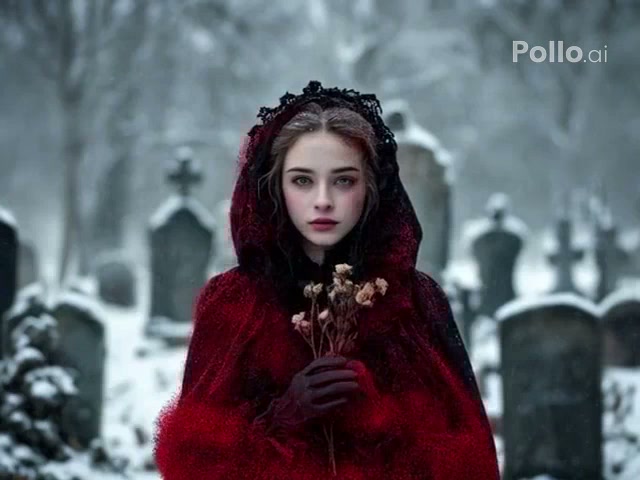
Dust dissolve
Portrait Dust Effect
Dissolve a close subject into a dense cinematic cloud of particles.
The AI Turn to Dust Video Generator dissolves a subject into a controlled cloud of cinematic particles while preserving the original background and composition.
Examples show reviewed results. Your output varies with the uploaded image, prompt, model, and settings.
Choose a close portrait dissolve or a wider scenic particle sweep. Selecting a style fills its motion prompt without changing your current generator settings.
Dissolve a close subject into a dense cinematic cloud of particles.
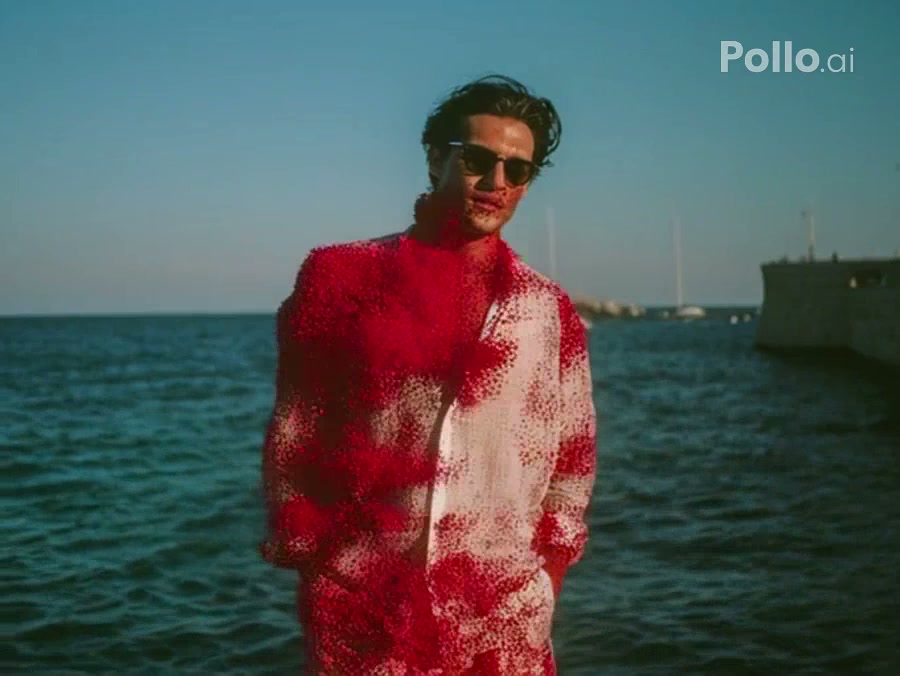
Use a wider setting and let the particles sweep across the scene.
The effect works by keeping the scene recognizable while removing the subject through particles. Strong separation between the subject and background makes that transition easier to read.
Pick a portrait particle cloud or a wider scenic dissolve to set the direction of the effect.
Use a subject with visible edges and a background that can remain stable after the subject disappears.
Adjust particle color, direction, pace, or settings, then generate the turn to dust clip.
The preset controls the dissolve behavior, particle color, and scene continuity. You can rewrite any of those details and retain full access to compatible generation controls.
Start with a focused variation, then edit any detail before generating.
Use soft gray ash and a slow sideways wind.
Dissolve the uploaded subject gradually into fine gray ash. Preserve the background exactly, move the particles in one gentle sideways wind, and leave the scene empty without fire, injury, text, or a camera cut.
Create a warm magical disappearance with glowing dust.
Transform the uploaded subject into thousands of small golden particles that rise and fade. Keep the original environment stable, preserve the subject until the dissolve begins, and use one continuous cinematic shot.
Bring a subject together from scattered particles.
Begin with the empty uploaded setting, then pull scattered red particles inward until they form the recognizable subject from the reference image. Keep the background and camera fixed and finish with a stable complete person.
It creates a short effect in which the uploaded subject breaks apart into particles while the original setting stays visible.
Yes. The presets use red examples, but you can edit the prompt to request ash gray, gold, blue, or another coherent particle color.
The underlying generator can accept images with multiple subjects, but clean spacing is important because overlapping bodies may merge during the dissolve.
No. Style selection fills only the prompt. Your compatible model and generation settings remain under your control.
The prompt asks for a stable background, but generative video may still introduce small texture or geometry changes.
No. The page frames it as a stylized particle disappearance and explicitly avoids injury, gore, fire damage, and destructive impact.
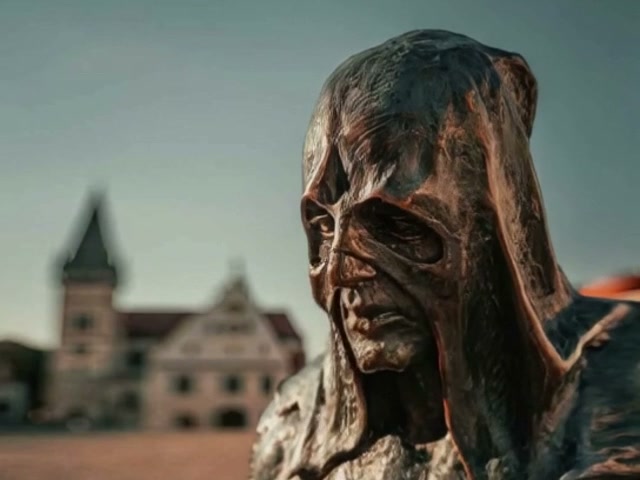 AI MeltTurn a subject into a flowing soft material.
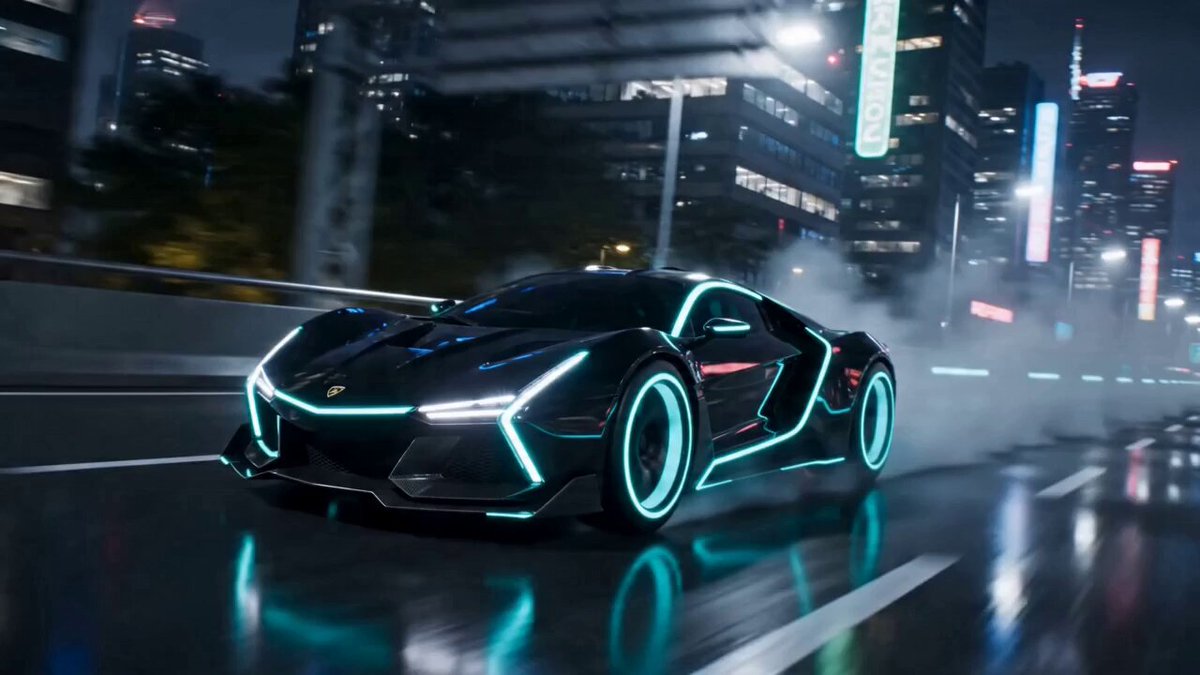 AI TransformationExplore broader subject transformations.
 AI SquishApply a playful soft compression effect.
 Liquid MetalFlow reflective metal over a subject.
 Image to VideoAnimate a photo with a custom prompt.
 Video to VideoRestyle motion from an existing clip.
Choose a reviewed preset, add your image, adjust the prompt, and generate the effect in OpusVideo.
Generate video